How to Setup AnkiConnect for SubSmith: Step-by-Step Guide
To start saving sentences in one click, you just need to connect SubSmith to your Anki library. You do this with a small add-on for Anki. Once it's set up, all your audio clips and pictures will send right to your decks automatically.
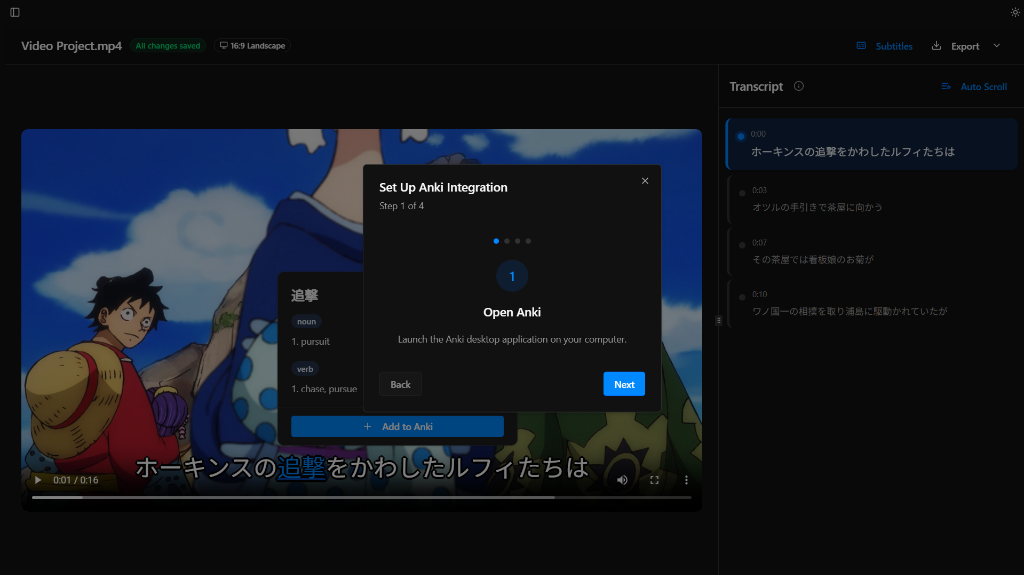
The Anki Setup Modal appears automatically and guides you through the process.
Step 1: Install the AnkiConnect Add-on
AnkiConnect is a bridge that allows external apps like SubSmith to talk to Anki.
- First, make sure you have the desktop version of Anki open on your computer.
- In the top menu, go to Tools and then click on Add-ons.
- Click the Get Add-ons button on the right side of the window.
- Paste this code into the box:
2055492159 - Click OK, then just restart Anki to finish the setup.
Step 2: Silent One-Click Mining
Once set up, SubSmith removes all friction. You don't need to "manage" the connection every time you watch a video.
- Once everything is connected, you can just hover over a word and click Add to Anki.
- The card is made instantly in the background. You won't see any annoying popups or have to fill in any boxes yourself.
The "Connection Required" Modal
SubSmith will only interrupt you if it detects a problem. The setup steps shown in the image above will automatically appear if:
- If Anki is closed, the app can't send anything over.
- If you haven't installed the add-on yet or it's turned off.
Troubleshooting Connection Issues
If SubSmith says "Anki Not Detected," check these three things:
- Check if Anki is actually open and running on your computer.
- Double check that AnkiConnect is in your add-ons list.
- Sometimes specialized firewalls might block it, so make sure your computer allows the connection.
Next Steps
Now that you're connected, test one card and confirm that text, audio, definitions, and optional images map to the intended fields before building more.